What You Should Know About Upgrading Your Laptop for Better Performance
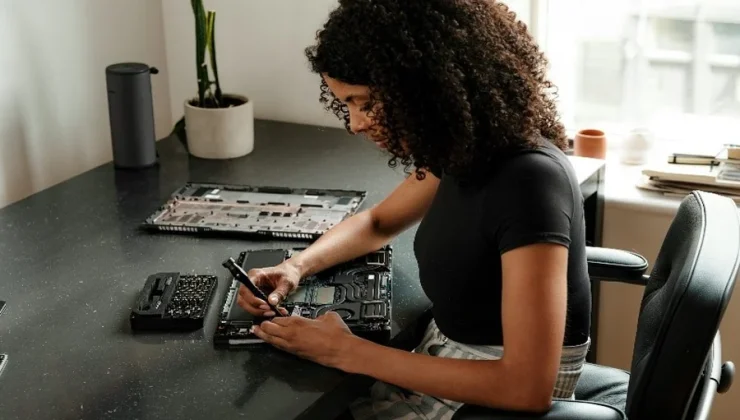
Upgrading your laptop is one of the most effective ways to enhance its performance and extend its useful life. As software becomes more demanding, hardware upgrades can help maintain speed and efficiency without the need for an entirely new device. However, upgrading a laptop is not as straightforward as upgrading a desktop.
It requires understanding compatibility, component types, and the potential impact on your system’s performance. Whether you’re aiming to multitask more efficiently, improve gaming performance, or simply speed up everyday computing, there are several key areas to consider before making changes.
Understanding Memory Upgrades: DIMM and SODIMM
Memory, or RAM, has a direct impact on how efficiently a laptop performs, especially when multiple applications are running. If your system slows down while multitasking, upgrading the memory is often the best way to enhance performance. Before doing that, it’s important to understand the two primary types of memory modules: DIMM and SODIMM.
DIMM, short for Dual Inline Memory Module, is generally used in desktop computers and is physically larger. SODIMM, or Small Outline DIMM, is a smaller variant created for compact systems. The two differ in size, pin arrangement, and power requirements, which means they cannot be swapped between device types.
Many users often ask the question is SODIMM for laptops before purchasing new memory modules. Yes, it is, as it is specifically designed to fit smaller spaces while maintaining reliable performance. Before upgrading, always check the supported memory capacity, type, and available slots to ensure a smooth and compatible installation.
Storage Upgrades: Moving from HDD to SSD
Storage is another crucial factor that significantly affects your laptop’s performance. Traditional hard disk drives (HDDs) use spinning disks to store data, which makes them slower when compared to solid-state drives (SSDs). Upgrading to an SSD can dramatically reduce boot times, speed up application loading, and improve overall system responsiveness.
There are different types of SSDs available, including SATA and NVMe. SATA SSDs use the same connection type as older hard drives and are usually an easy swap. NVMe drives, on the other hand, connect via the PCIe interface and offer much faster read and write speeds.
Before upgrading, you should check your laptop’s specifications to see which type of SSD it supports. Some laptops even have space for both, allowing you to use an SSD as your primary drive while keeping your existing HDD for additional storage.
Processor and Graphics Upgrades: What’s Possible
Upgrading a laptop’s processor or graphics chip can be challenging. Unlike desktops, where CPUs and GPUs are often modular, most laptops have these components soldered onto the motherboard. This makes replacement nearly impossible without professional expertise and specialized equipment. However, there are still ways to improve performance related to these components.
For users who need more graphical power, an external GPU (eGPU) enclosure is sometimes an option. This setup allows you to connect a desktop-grade graphics card to your laptop via Thunderbolt or USB-C, enhancing performance for gaming, video editing, and other demanding tasks. Keep in mind, though, that not all laptops support eGPU connections, and compatibility should be verified beforehand.
If CPU upgrades are not feasible, optimizing performance through proper cooling and software adjustments can still make a noticeable difference. Cleaning the internal fans, reapplying thermal paste, and ensuring good airflow can prevent thermal throttling and help maintain consistent performance during heavy workloads.
Battery and Power Considerations
Power supply and battery health play a key role in sustaining upgraded performance. More powerful components may consume additional power, so it’s essential that your laptop’s battery and charger can handle the increased demand. A degraded battery can lead to unstable performance, random shutdowns, or limited power to upgraded parts.
When upgrading internal components, it’s advisable to inspect your battery’s condition. Replacing an aging battery can not only restore longer run times but also help protect your new components from inconsistent voltage levels.
Cooling and Thermal Management
Better performance often generates more heat, which can shorten component lifespan if not properly managed. Upgrading your laptop’s thermal solution is usually not possible beyond cleaning the internal fans and vents, but you can still take several steps to enhance cooling.
Cleaning dust buildup from vents, fans, and heat sinks improves airflow and keeps temperatures in check. Applying fresh thermal paste between the CPU or GPU and the heat sink can further help transfer heat more effectively. In addition, using a cooling pad can provide an external boost, reducing the temperature during intensive use. Monitoring your laptop’s temperature through software tools can help identify overheating issues before they cause damage.
If you notice that temperatures frequently spike, it may be worth re-evaluating the airflow setup or using your laptop on a hard, flat surface rather than on soft materials like blankets or cushions.
Software Optimization After Hardware Upgrades
Even after upgrading your hardware, optimizing your operating system is essential to fully realize performance gains. Outdated drivers, unnecessary startup programs, and excessive background applications can all limit your new hardware’s potential. Updating your drivers, especially those for your chipset, graphics, and storage controllers, ensures that your system runs efficiently with the new components.
Uninstalling bloatware and disabling unnecessary startup processes can free up memory and processing power. Regular system maintenance, such as clearing temporary files and updating the operating system, will help keep performance consistent. Additionally, adjusting power settings to “High Performance” mode can improve responsiveness, particularly when running resource-intensive applications.
Bringing It All Together
Upgrading a laptop for better performance requires careful planning and understanding of its hardware limitations. Unlike desktops, laptops are more constrained in terms of space, cooling, and component accessibility. By focusing on key areas such as memory, storage, and cooling, you can achieve noticeable improvements in speed, multitasking, and responsiveness.
A well-executed upgrade not only revitalizes an older system but also enhances productivity and extends the device’s useful life. Whether you’re adding more RAM, switching to an SSD, or optimizing thermal performance, each step contributes to a smoother and more efficient computing experience.
With thoughtful preparation and attention to compatibility, upgrading your laptop can transform it into a more capable and reliable tool for everyday use.